 NikPak
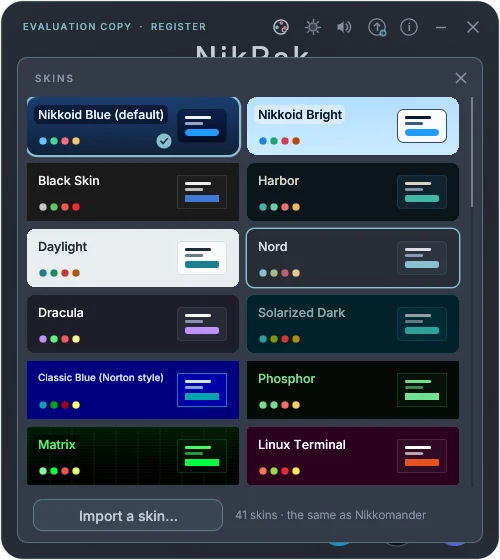
41 skins, one click
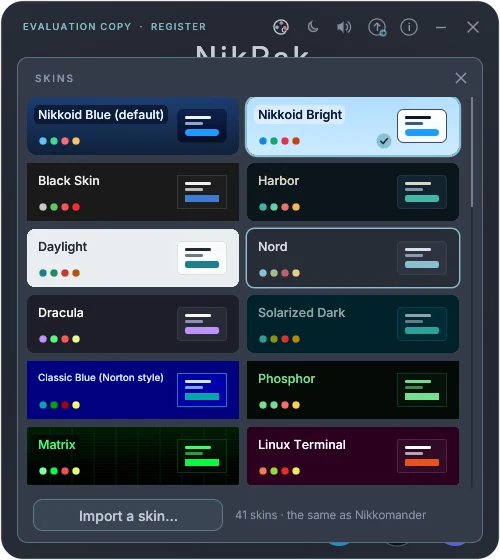
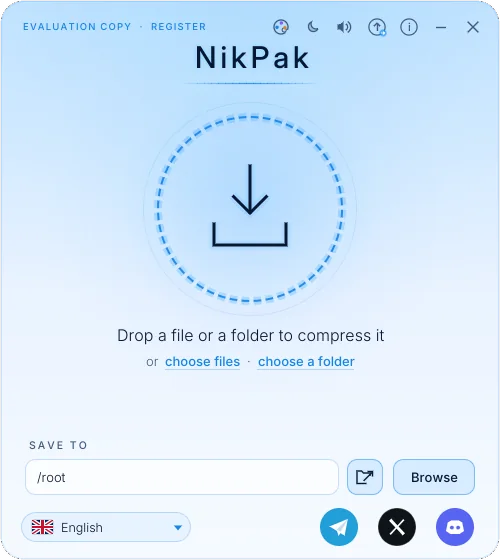
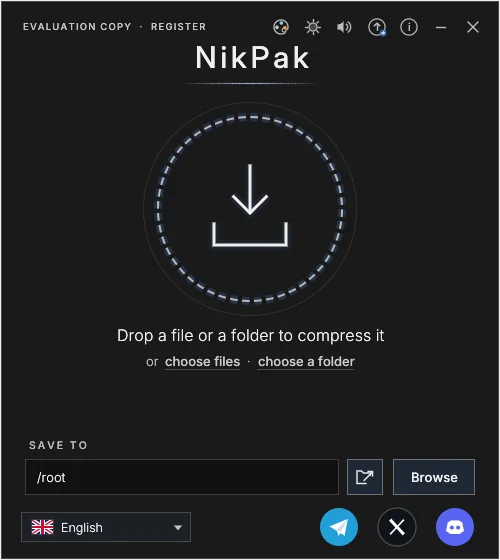
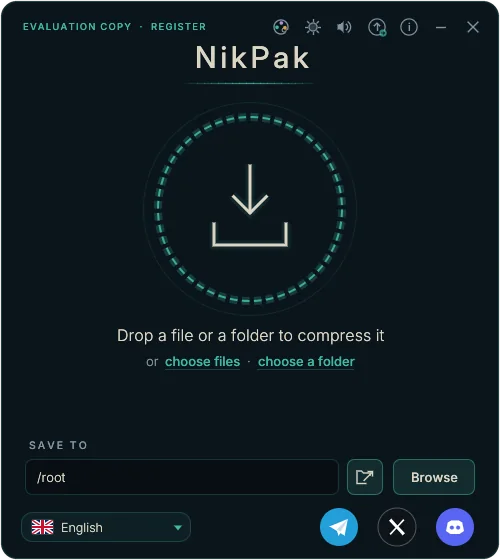
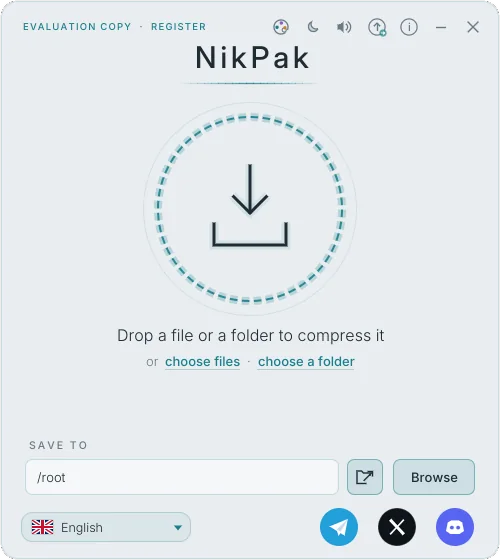
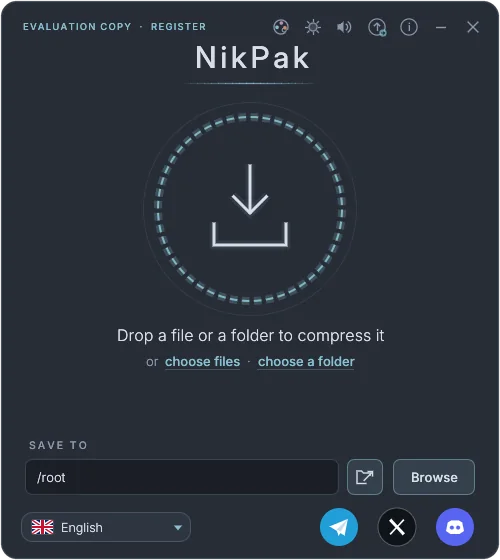
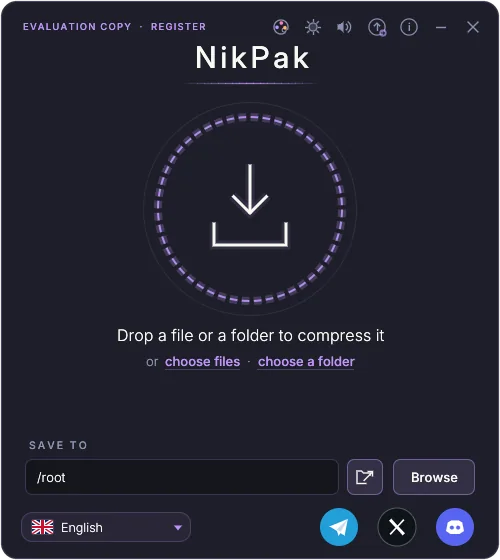
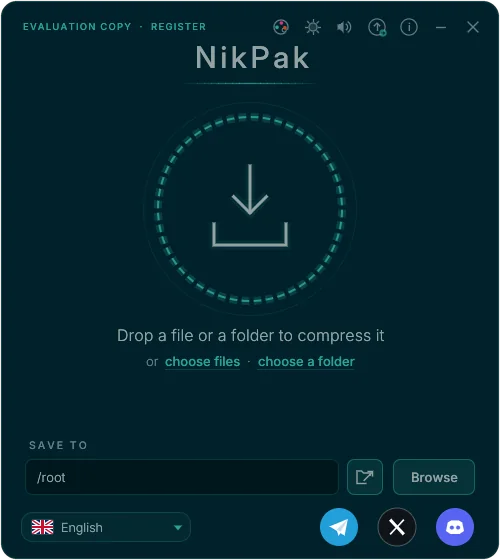
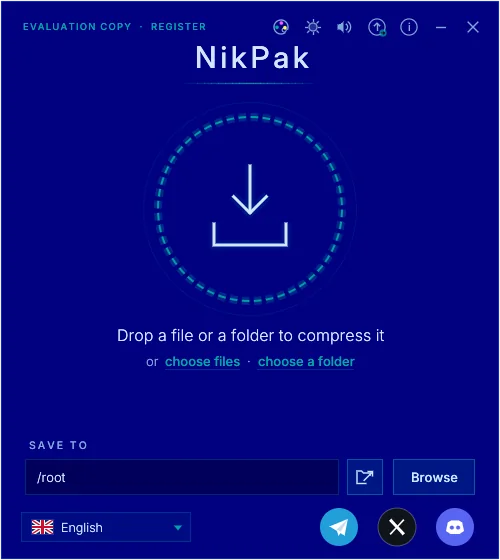
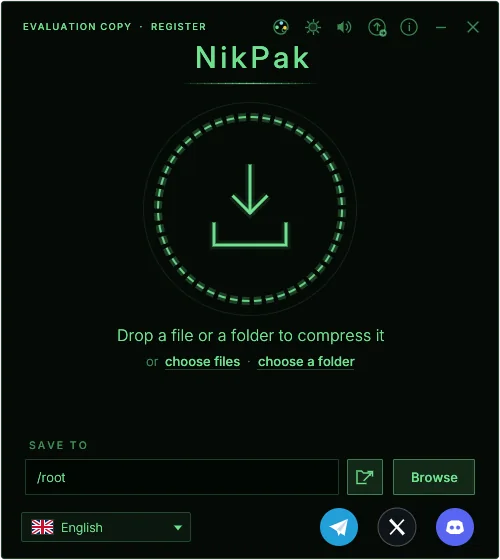
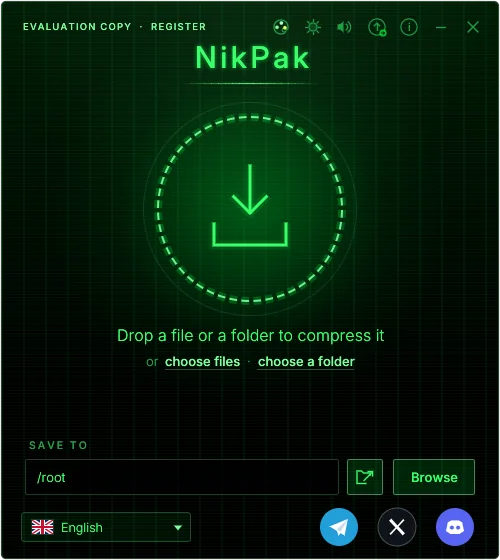
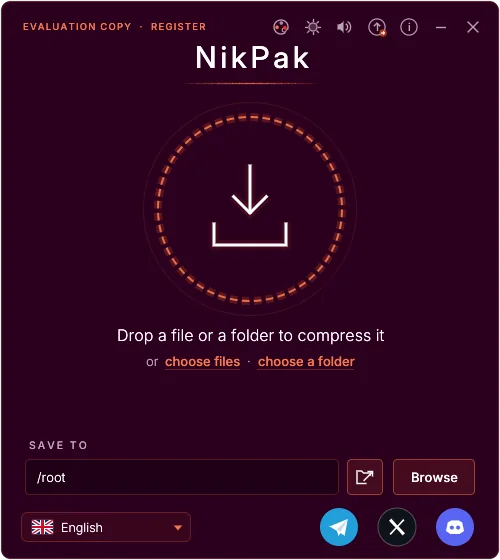
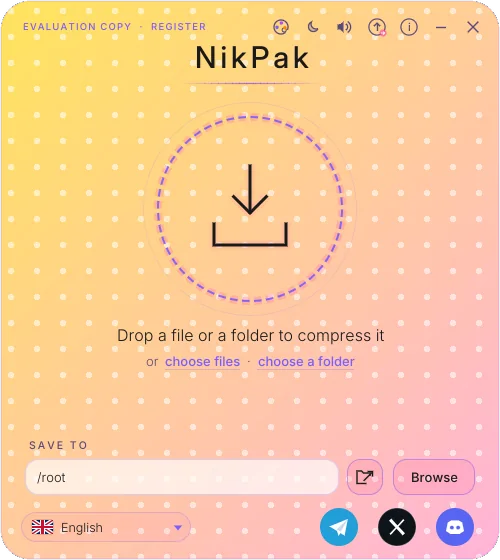
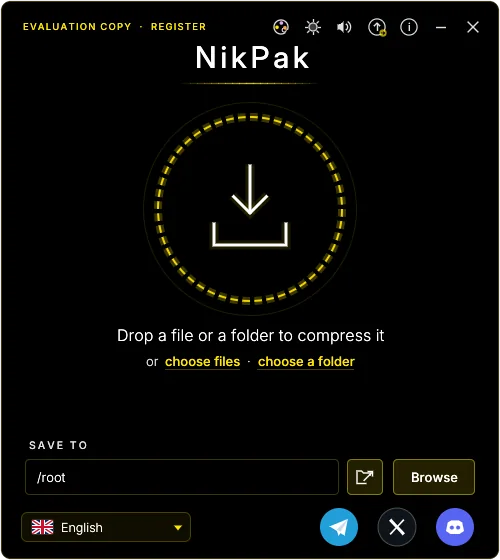
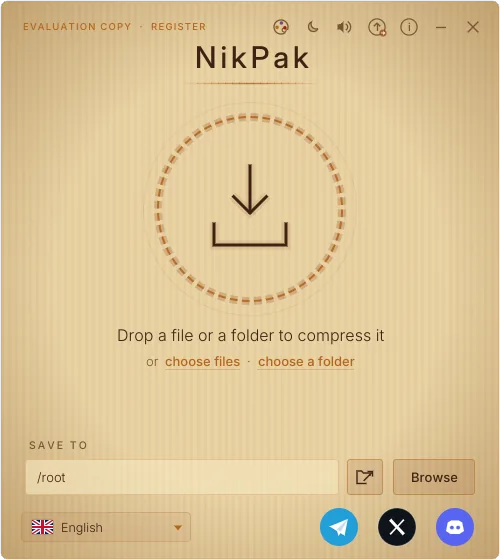
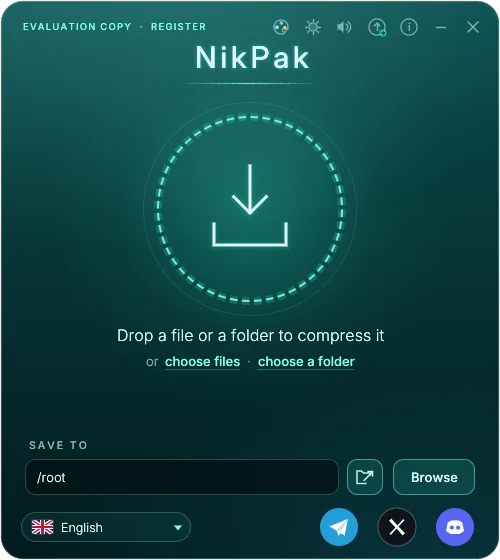
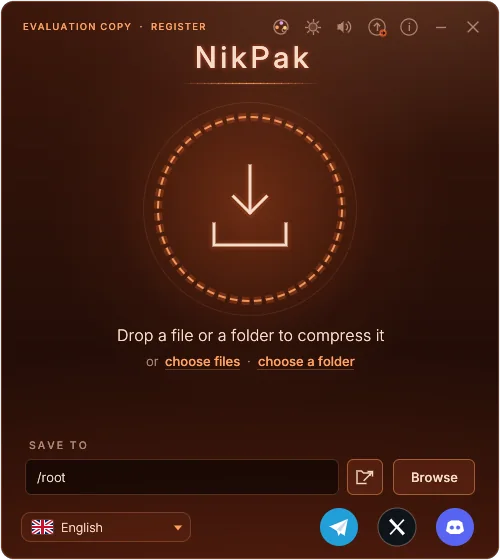
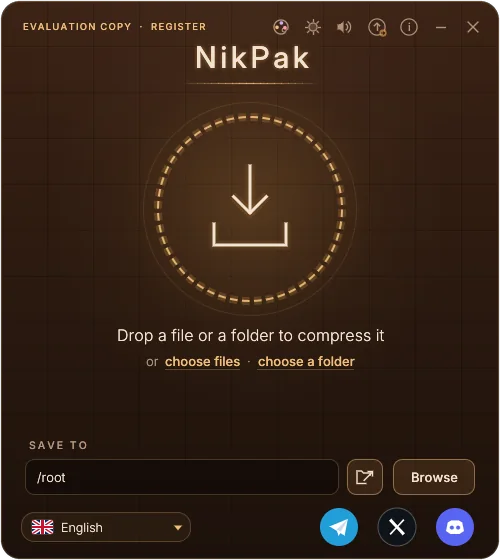
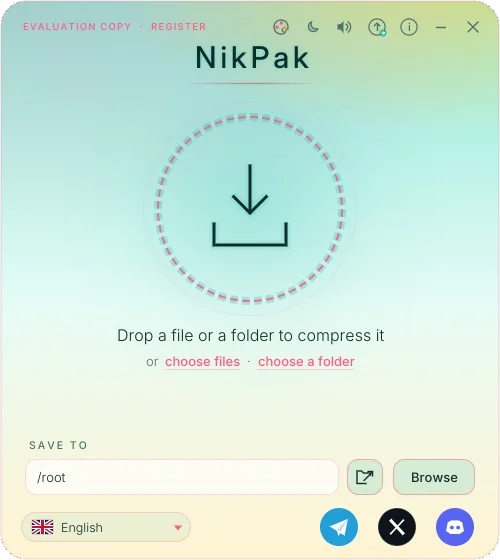
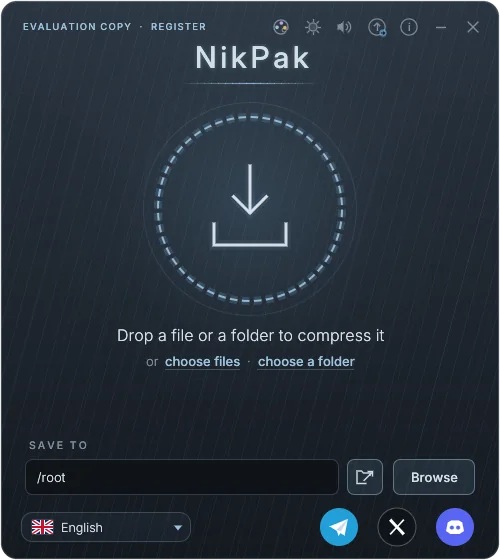
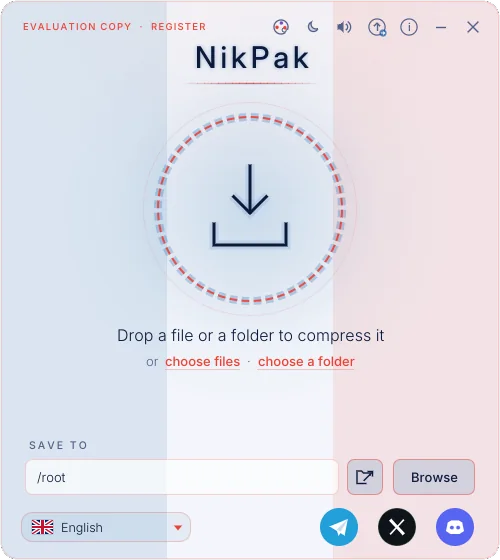
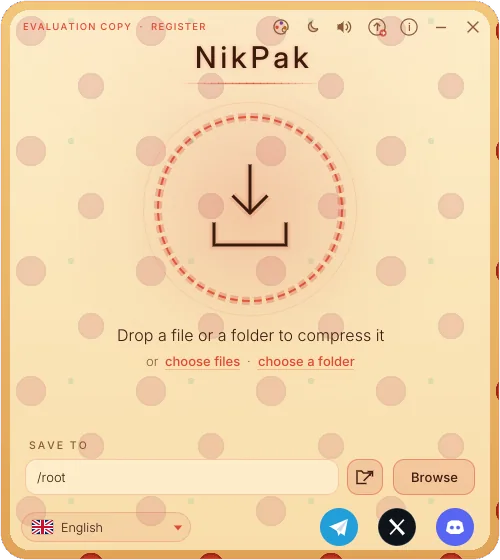
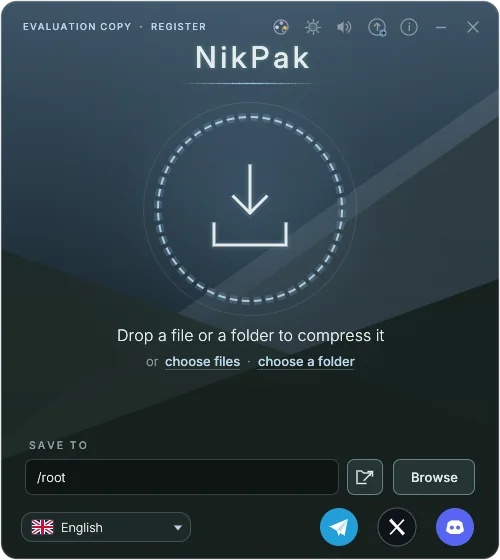
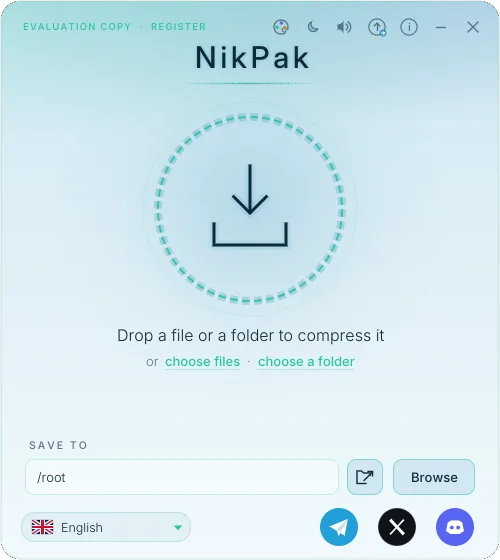
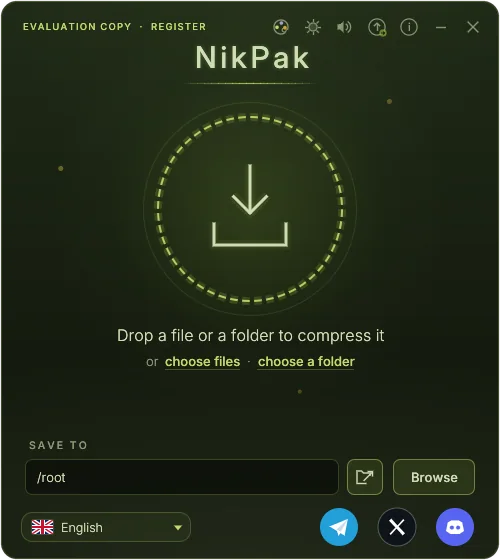
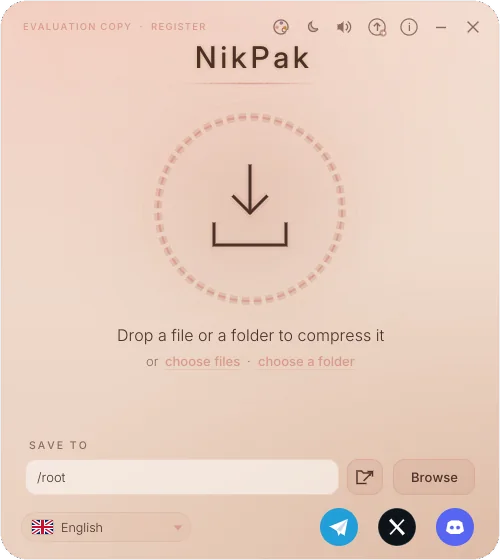
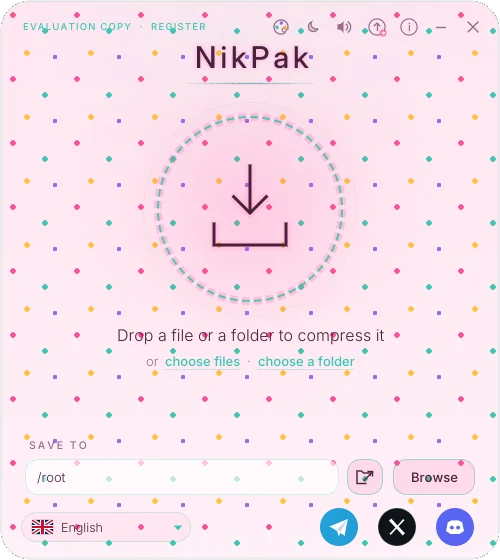
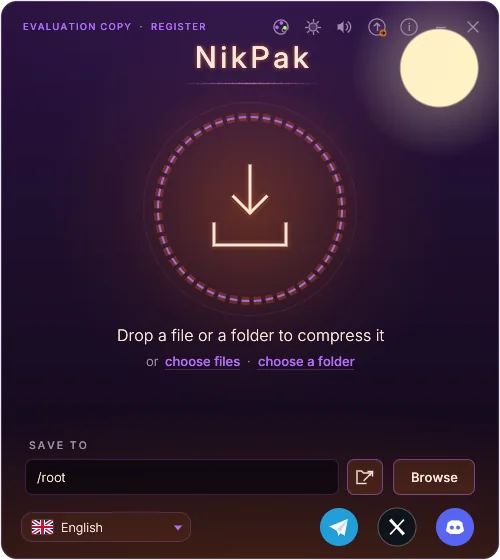
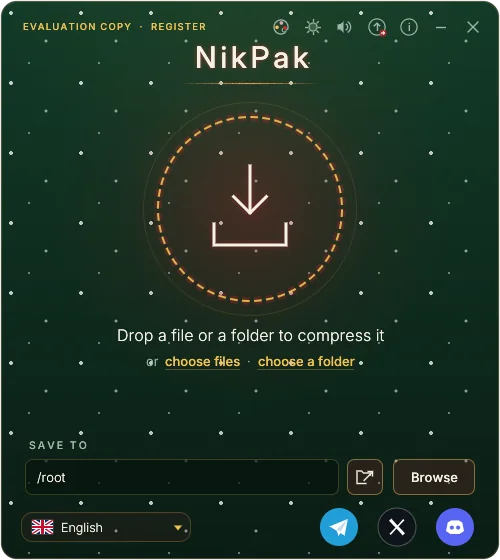
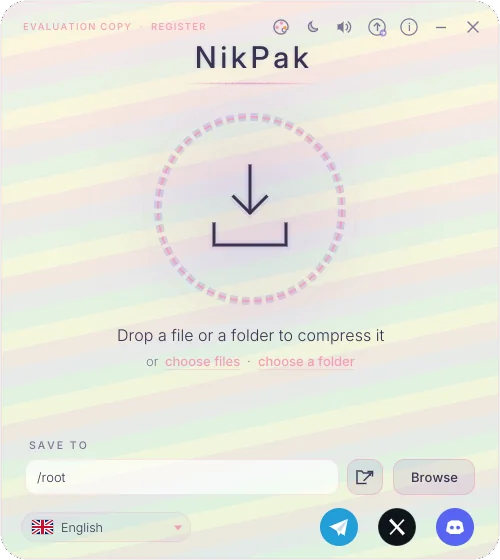
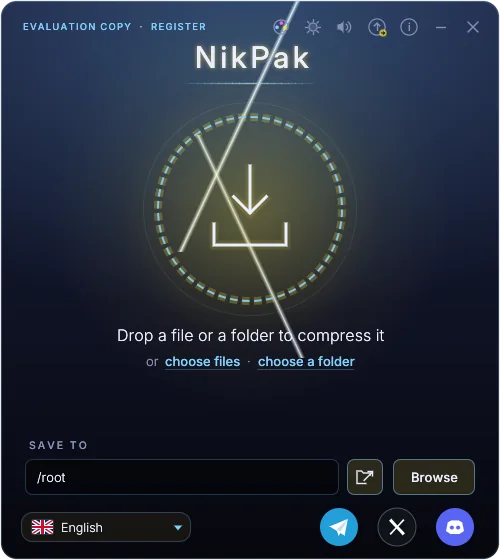
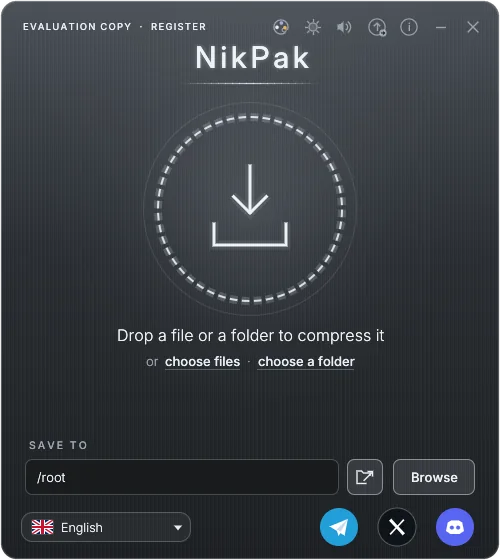
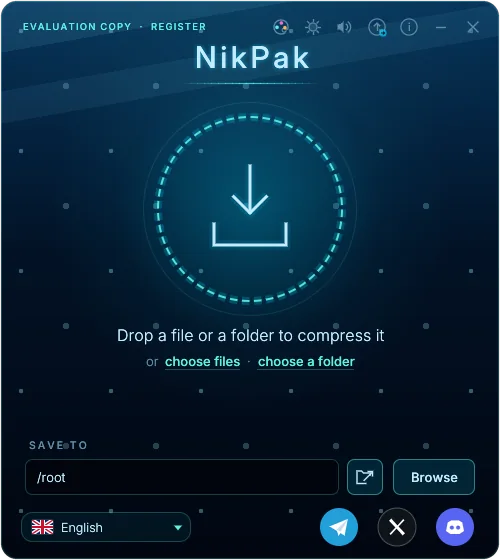
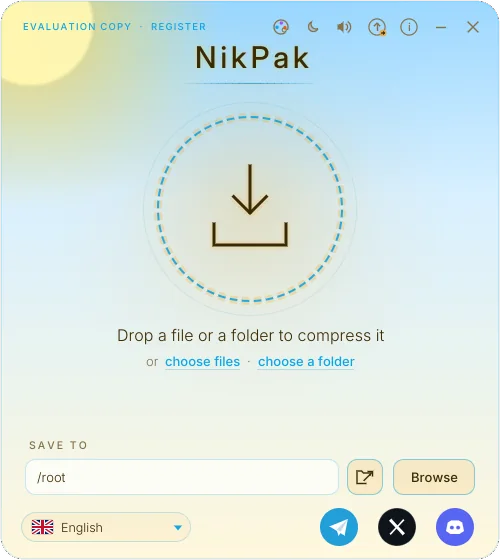
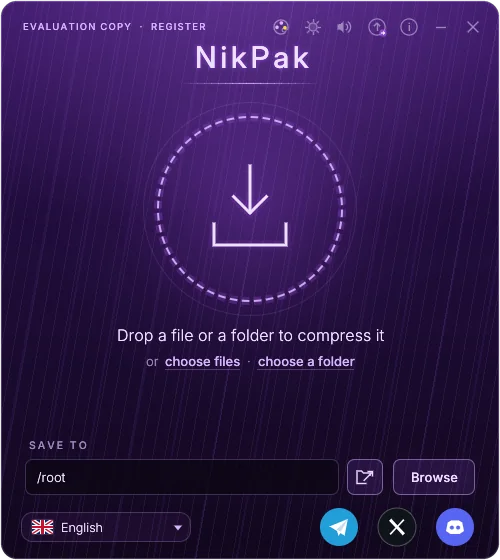
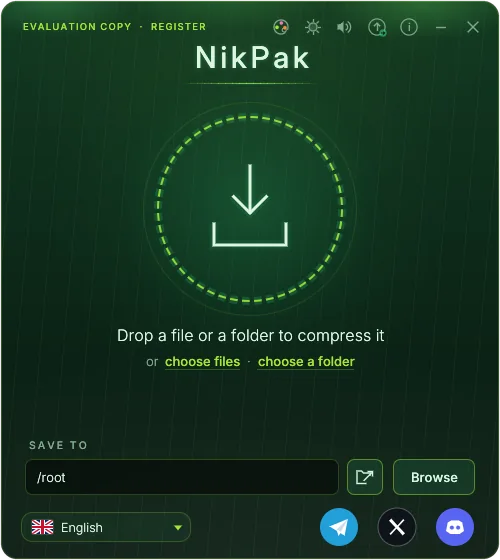
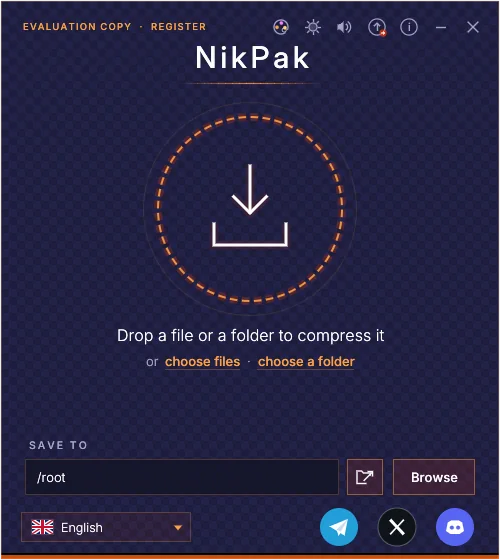
NikPak and unNik wear the same skins as Nikkomander, from Nikkoid Blue to Pizza, Matrix and 8-Bit Game. Pick one and both programs keep it.
How it works
- Skins button: the palette button in the title bar opens the skins menu. Every skin is shown in its own colours: point at one to try it on the whole window, click to keep it.
- Sun and moon: the button next to it switches between Nikkoid Blue (dark) and Nikkoid Bright in one click, like in Nikkomander.
- Remembered: the chosen skin is saved and used at the next start. NikPak and unNik share it: change it in one, the other follows within seconds.
- Faithful: the backgrounds are painted from the same CSS gradients as in Nikkomander, stripes, stars, dots and bricks included.
Gallery
NikPak in every skin. Click a picture to see it full size.
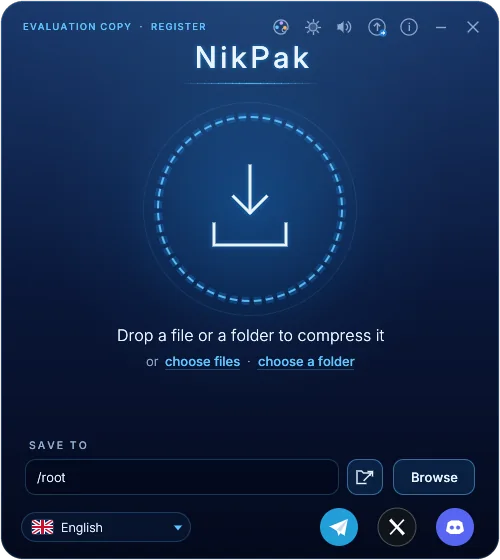
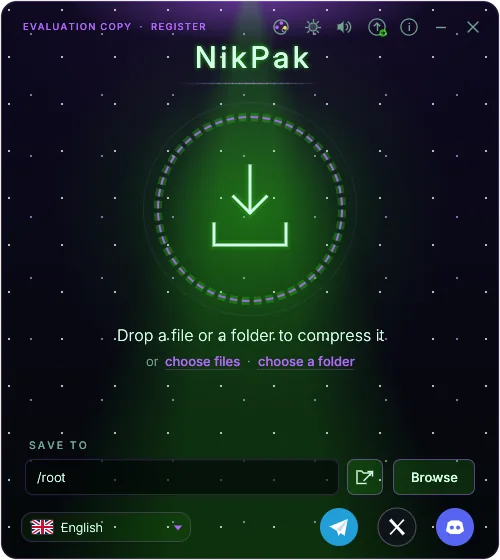
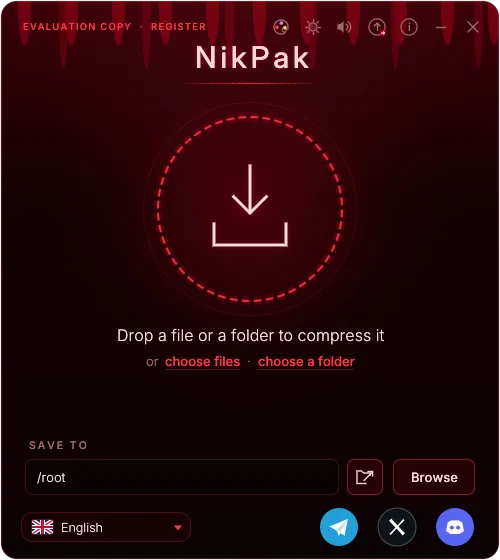
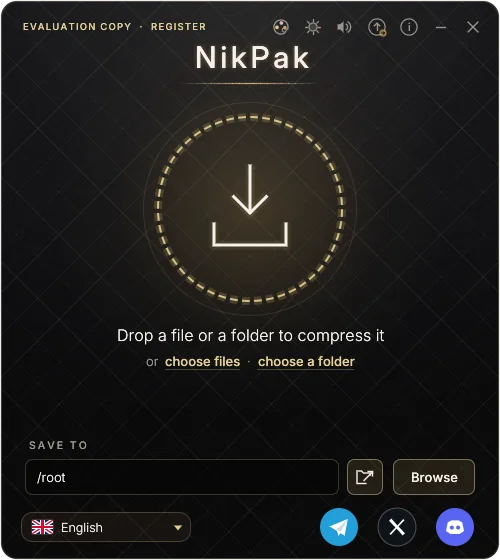
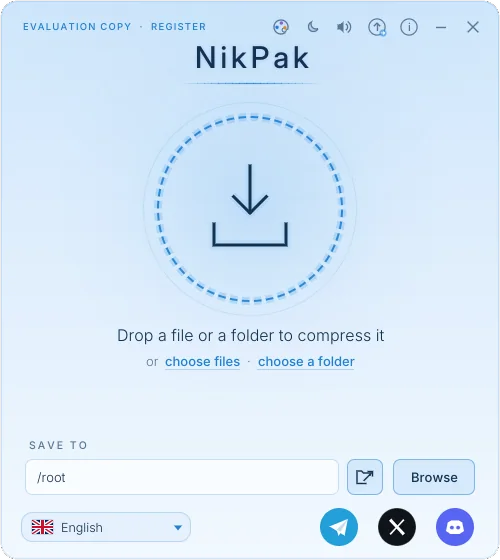
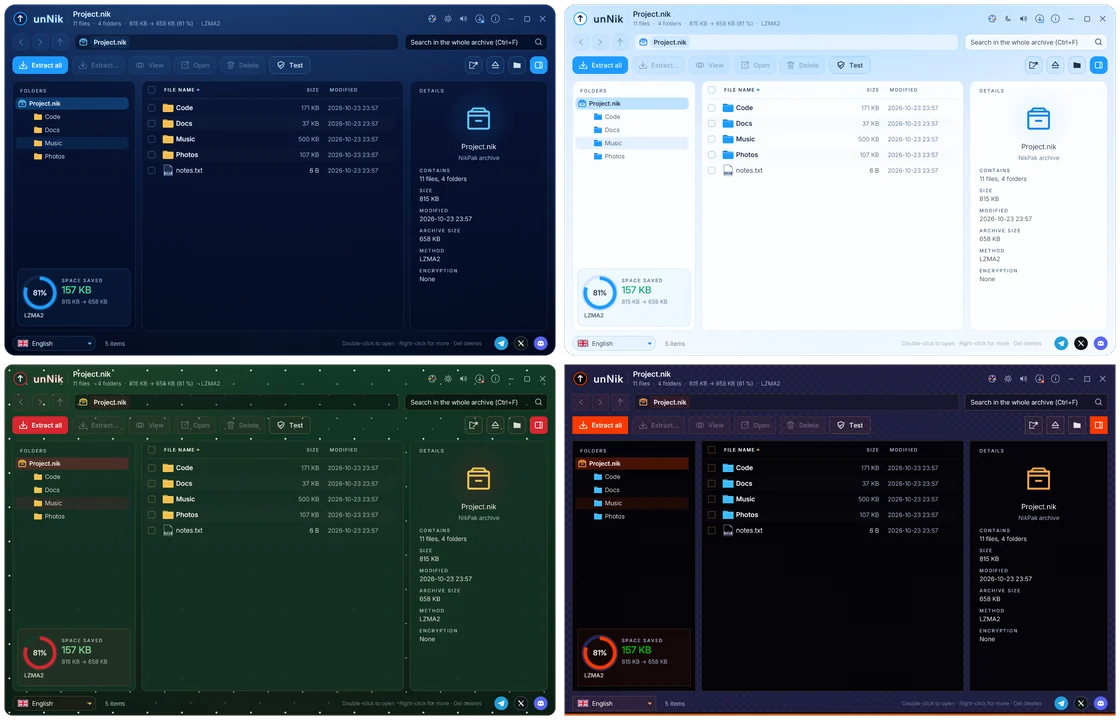
unNik too
The archive browser follows the same skin: folders, file icons, selection and dialogs take the skin's colours.
Your own skins
A skin is a small .skin.json file: a name and a list of colours, in the same format as Nikkomander. Click Import a skin… at the bottom of the skins menu: the file is copied to the skins folder next to the settings, and the × on its tile removes it again.
NikPak keeps its own fonts in every skin; the fonts and a few decorative borders of Nikkomander's skins are not used.
{
  "id": "ocean-glass",
  "name": "Ocean Glass",
  "dark": true,
  "vars": {
    "bg": "#06121f",
    "panel": "#0b2236",
    "dialog": "#0d2740",
    "fg": "#d7e6f2",
    "fg-dim": "#7897ad",
    "accent": "#4cc2ff",
    "accent-fg": "#031521",
    "border": "#1b4160",
    "danger": "#ff6b6b",
    "ok": "#6be3a4",
    "radius": "14px"
  }
}
Try NikPak now
One setup installs NikPak and unNik. No registration needed to start.
Free download